You've just designed a certificate. It looks great in the email or portal, but when you post it on LinkedIn or share it on WhatsApp… something’s off. The logo looks fuzzy, the text isn’t sharp, and that proud moment suddenly feels a little underwhelming.
If this sounds familiar, you’re not alone. Thousands of learners, professionals, and even tech nerds at universities face the same issue every day. Certificates are often designed beautifully, but somewhere between download and upload, they lose their shine.
Let’s break down why certificates turn blurry and, more importantly, how to fix it before sharing your achievement online.
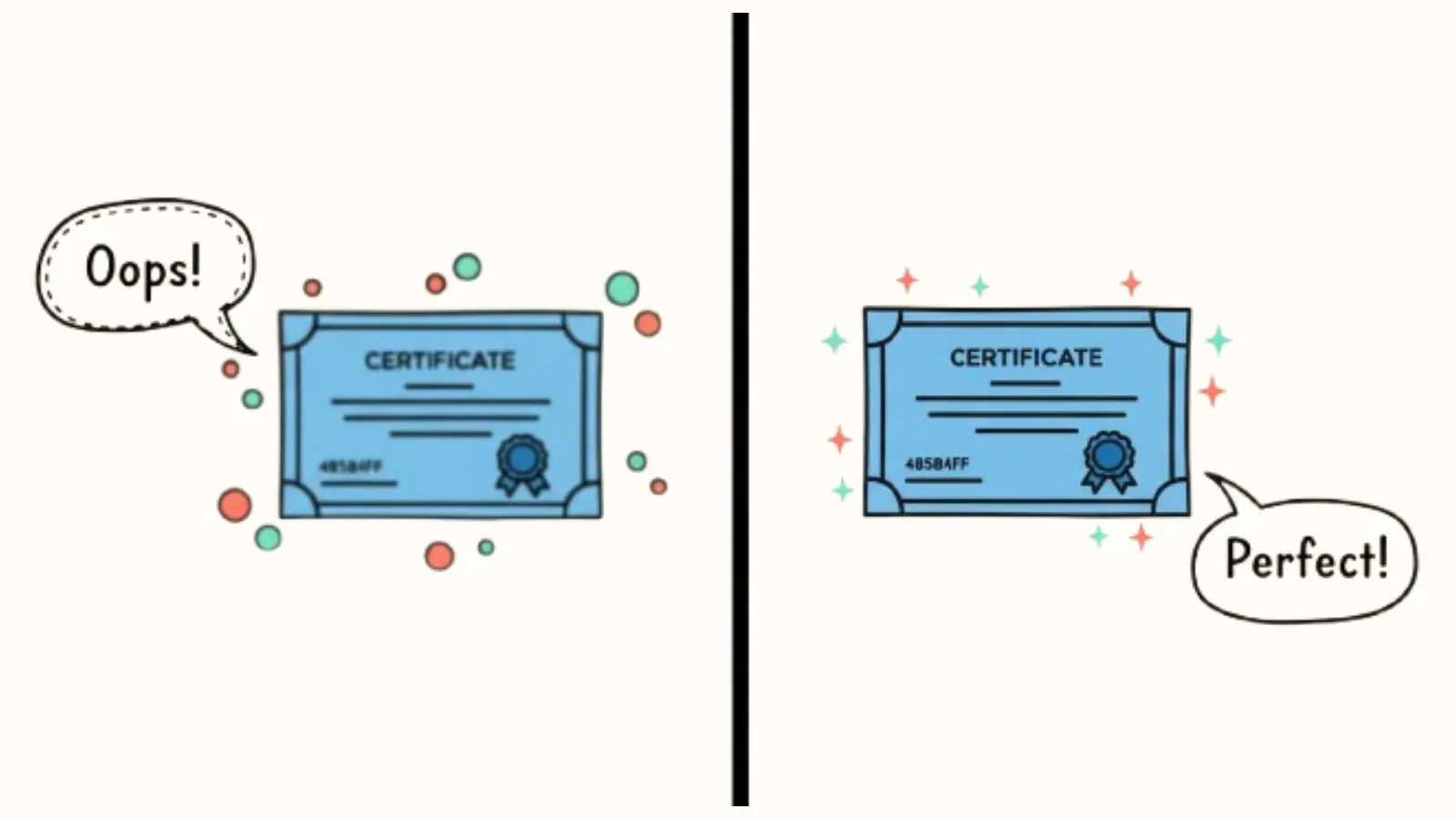
1. Why Certificates Become Blurry In The First Place
The short answer: file compression and resizing.
The long answer involves a few simple but important details.
a. You took a screenshot of a PDF.
PDFs are made for print, not screenshots. When you capture the screen, you’re freezing a lower-quality version. Text and borders appear pixelated because the screen only captures what’s visible, not the actual file resolution.
b. The image got compressed by social platforms.
LinkedIn, Facebook, WhatsApp, and even Gmail automatically reduce image sizes to save space and bandwidth. So, that crisp 300 DPI certificate suddenly becomes a 72 DPI blur after upload.
c. Wrong export settings.
If you or your issuer exported the file at a low resolution, it’ll always appear soft, especially on large screens.
d. The file got stretched.
Resizing a small image to fit a big frame (for example, stretching a 600 px image to fit a banner) will instantly ruin the clarity.
e. Mobile previews distort quality.
Sometimes, the certificate itself is fine, but mobile preview settings shrink and re-render it in lower quality.
2. How to Fix a Blurry Certificate
Now that you know what’s going wrong, here’s how to make things look right.
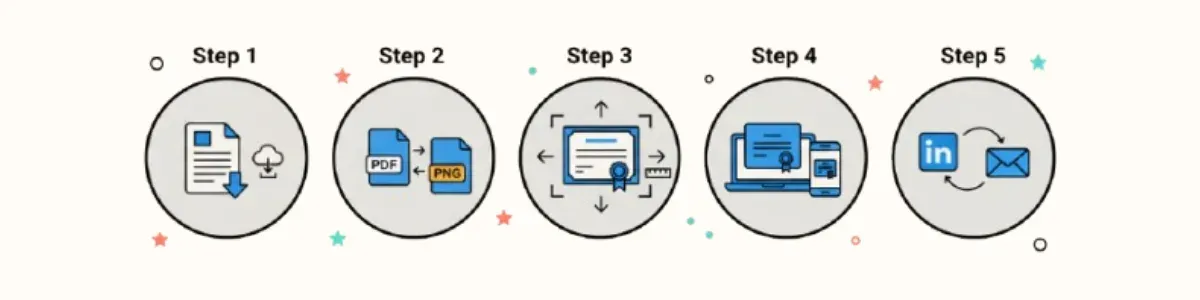
Step 1: Always use the original download link
Whenever possible, download your certificate directly from the source (your institution, course platform, or credential email). Avoid taking screenshots or cropping previews.
Step 2: Save or export in the right format
- For online sharing, use PNG or JPG at 150 DPI or higher.
- For printing, use PDF at 300 DPI.
- Avoid converting back and forth between formats, as it leads to double compression.
Step 3: Check your dimensions
If you plan to post your certificate online, make sure the image width is at least 1200 pixels. Anything smaller tends to look soft on modern screens.
Step 4: Resize correctly
If you must resize, use image editors like Canva, Figma, or Photopea instead of phone screenshot tools. Always maintain the original aspect ratio.
Step 5: Preview before sharing
Before hitting “Post,” open your file on both mobile and desktop. Sometimes a certificate that looks perfect on a phone appears grainy on a large monitor.
3. Quick Platform Tips
- LinkedIn: Instead of uploading the certificate image as a post, use the “Add License or Certification” option on your profile. It links directly to the verified source, preserving both clarity and credibility.
- WhatsApp: Send the certificate as a PDF file, not as an image. WhatsApp compresses images but keeps PDFs intact.
- Email: Avoid attaching screenshots; attach the original file or a cloud link (Google Drive, Dropbox, etc.) for full clarity.
4. A Smarter Way to Issue Certificates
At this point, you might be thinking: “Okay, but why are certificates being issued in poor quality in the first place?”
That’s a fair question. In many cases, the issue doesn’t start with you but at the issuing end. Certificates generated from outdated systems or low-resolution templates often come out fuzzy no matter what you do.

That’s where Hyperstack comes in.
Hyperstack helps organizations issue digital certificates and badges in bulk. Without losing quality or consistency, every certificate is stored, shared, and verified at its original resolution, whether it’s sent to ten learners or ten thousand.
If you’re a course creator or institution that struggles with learners complaining about blurry certificates, Hyperstack ensures your credentials stay clear, secure, and instantly shareable across any platform.
Learn more about creating high-quality digital certificates with Hyperstack →
5. Fixing It at the Source (For Institutions)
If you’re on the issuing end of things, running a coaching program, workshop, or an online course from your mom’s basement; here’s what you can do to prevent the problem altogether:
- Design in 300 DPI: Whether you use Canva, Photoshop, or a credentialing platform, always start your design in 300 DPI resolution.
- Avoid text too close to edges: Text distortion is more visible near corners when resizing. Keep key elements centered.
- Export only once: Every export compresses the file a little more. Save your master file and export directly to final formats.
- Automate with bulk issuance tools: Platforms like Hyperstack handle this automatically, creating and sending certificates that remain sharp and verifiable no matter where they appear.
6. What to Do If You Already Have a Blurry File
If you’ve already received a blurry certificate, you can try these workarounds:
- Request a reissue from your course provider. Most credential systems can regenerate your certificate from the original template.
- Upscale using free tools like Pixlr, Adobe Express, or Fotor (they can sharpen soft images without major distortion).
- Convert PDFs smartly: Use online tools such as Smallpdf or ILovePDF to convert PDF → PNG at custom resolutions. Choose “High Quality” or “300 DPI” options.
- Avoid mobile downloads: Always download credentials from a computer if possible. Mobile browsers often downsample large files.
7. The Bigger Picture
Clear certificates are more than just nice to look at. They represent credibility, effort, and professional achievement. When your certificate looks crisp, it gives a better first impression to employers, clients, and peers.
Blurry images, on the other hand, can subconsciously signal poor attention to detail—even when you’ve done nothing wrong.
Digital certificates are meant to be proof of skill, not just a souvenir. Treat them like digital assets: maintain their quality, verify their source, and share them the right way.
8. Bringing It All Together
Let’s recap the key takeaways:
- Always download the original certificate and avoid screenshots.
- Export at the right DPI (150+ for web, 300 for print).
- Use PNG for sharing, PDF for storage.
- Check your dimensions and previews before posting.
- If you’re an institution, issue certificates through reliable tools like Hyperstack to avoid resolution loss altogether.
Final Thoughts
Your certificate tells a story. It’s not just a piece of paper (or pixels). It reflects time, dedication and learning. It deserves to look its best wherever it’s displayed.
So the next time your certificate looks blurry, you’ll know exactly what to do. And if you’re the one issuing them, you now know how to make sure no learner ever asks that question again.
Want to issue professional, high-resolution certificates and badges effortlessly? Schedule a demo to see how Hyperstack can help you out.
Frequently asked questions
Your certificate looks blurry because the image is compressed or resized when you upload it to social media or messaging apps. Platforms like LinkedIn and WhatsApp automatically reduce file sizes to load faster, which lowers image quality.
Download the original file instead of taking a screenshot. Then export or save it as a PNG or JPG at 150–300 DPI . Always preview before posting to make sure the text and logo look clear.
A pixelated PDF usually means it was exported at a low resolution or printed from a zoomed-in screen capture. To fix this, re-download the file from the original source or ask your issuer to send a high-quality version.
Use PNG for images and PDF for documents. PNG keeps text sharp on screens, while PDF preserves layout for printing or emailing. Avoid screenshots or overly compressed JPGs.
Instead of uploading it as a photo, use LinkedIn’s “Add License or Certification” feature. It links directly to the verified source and keeps your credential crisp and clickable.
Yes, but results vary. Use mobile editing apps that let you adjust resolution or DPI before sharing. Avoid WhatsApp image compression by sending it as a document or PDF , not as an image.
Use 300 DPI for print (high quality) and 150 DPI for online sharing. Anything below 100 DPI will likely appear blurry or pixelated.
The difference often comes from how they’re designed and issued. Professional platforms export in high resolution automatically, while older or manual systems may compress the design during generation.
That usually means the original file itself is low resolution. Contact your course provider or certificate issuer and ask if they can re-issue a higher-quality version.
Issuers should design certificates in 300 DPI , use reliable templates, and issue them through modern platforms that preserve image clarity. Hyperstack , for instance, lets organizations issue thousands of digital certificates in bulk. All in high resolution, verified, and ready to share without quality loss.
Tags
- Why my certificate looks blurry
- Fix blurry digital certificate
- Blurry PDF certificate
- Certificate image quality fix
- How to make certificate clear
- Pixelated digital certificate
- Upload certificate on LinkedIn
- Improve certificate resolution
- Certificate PDF too small or fuzzy
- Digital credential clarity
- High resolution certificate design